For windows users we are here How To Change Boot Screen In Your Windows PC.
While booting in your windows pc you see default windows loading
process that are by default windows boot screen. But the screen see
quite be boring because watching the same screen again and again is not
cool. But this can be changed, yes it is possible to change your Boot
screen and you can replace them with a very cool one that you will love
to have. So proceed with complete guide below.
How To Change Boot Screen In Your Windows PC
The method is very simple and can be done using one windows tweak
that will change the file of your default boot screen and replace it
with a very cool one that you will surely love instead of boring one. So
proceed with the steps below.
Steps To Customize Boot Screen In Windows
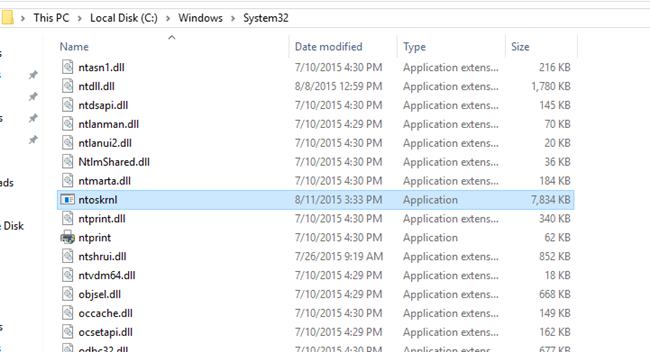
First of all you need to create a backup of your windows boot screen system file for that go to My Computer > C:/ > Windows > System32.
Now there you will see file ntoskrnl.exe copy and paste the file in any other location of your computer.
Now after downloading and installing launch the tool in your windows PC
Now in the program click on File and then select Open option and then locate the ntoskrnl.exe file.
Now when the file is opened click on Action button there and then select replace Bitmap option.
Now there select any of your desired screen and then click on OK button.
Now click on File button and then choose Save As option.
And now save the file as ntoskrnl.exe.
Now, turn your PC off and then start it in the Safe mode.
Now copy your created ntoskrnl.exe file and paste it into the C:/ > Windows > System32.
Now restart your computer in normal mode.
Thats it you are done, with this you boot screen is changed with awesome image that you have selected.
So above is all about How To Change Boot Screen In Your Windows PC.
With this you can easily get a new look in your windows and can get rid
of the default look that you never want to get back again after this
cool windows tweak. Hope you like this, do share this with others too.
Leave a comment below if you have any related queries with this.
Amazing Cool Gadgets and Devices for Windows Laptop Here are the cool devices and gadgets that work with your computer. These all gadgets and device increase the functionality and hence empowers the functions of your computer. U SB (Universal Serial Bus) or portable Pendrive is the easy and a primary way to connect devices to your computer. And today there are various devices that have came in the market that can make your working place attractive and working platform cool, And here in this article we are discussing some of the cool devices that you will surely love to try with your computer. Top 10 Amazing Cool Gadgets and Devices for Windows Laptop We have stated the list of some of the best gadgets that every user will love to have with their laptop. Refer them all and go for buying it. #1 Magnetic Credit Card Reader Amazing Cool Gadgets and Devices for Windows Laptop1 Commonly, we use cash cards, credit card readers i.e magnetic stripe rea...
Pokémon Go Servers Went Offline After A Massive DDoS Attack As we know, Pokemon Go is one of the most trending games worldwide played by many users and it has taken the world by storm. However, Pokemon Go Game servers have recently been taken down by a hacking group named Poodle Corp. Pokémon Go Servers Went Offline After A Massive DDoS Attack Pokémon Go Players who are looking to spend their weekend playing the game were left disappointed. On 16th July a significant interruption striked the game servers. However, PoodleCorp claims this time about the interruption and had mentioned that they had used a DDos attack to take down Niantic’s servers. In a DDoS attack, the incoming traffic flooding the victim begins from many unusual sources – potentially hundreds of thousands or further. This completely makes it difficult to stop the attack simply by blocking a single IP address. Moreover, it is very difficult to recognize genuine user traffic from attack traffic whe...
How To Remove Computer Viruses Using CMD We are here with a cool trick, How To Remove Computer Viruses Using CMD (Command Prompt). Follow the full post to know much more about it. T oday Virus can penetrate in our computer through numerous ways like through Internet Browsing, From USB devices and also by installing some infected software. These viruses make our computer operate slow and also some of the dangerous viruses can steal our data. These viruses can also contaminate our operating system too. So the better choice is to remove these viruses as soon as possible. There is the unconventional method to remove a virus from a computer system which includes antivirus programs and firewalls etc. But today we are discussing here a method by which you can easily Remove Computer Viruses Using Cmd. The method is simple and straight. Just read out the below post to proceed. How To Remove Computer Viruses Using CMD Actually, the com...



Comments
Post a Comment